
FOREST WIFI DONGLE SUPPORT
What steps are needed to configure the Wi-Fi-dongle on a Shuttle® curtain track:
- Make sure the Shuttle® and curtain track on which this Wi-Fi-dongle is installed are configured and in working order
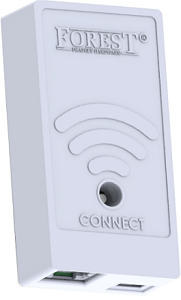
- Connect the Wi-Fi-dongle to Port 1 on the Shuttle®
- Connect your mobile phone or tablet to a 2.4GHz Wi-Fi network on which the Wi-Fi-dongle needs to be configured.
- Download and install, or open the Forest Connect app. Register a new account – and/or login.
- Click “Add device” or the “+” symbol in the upper right corner and choose “Wi-Fi-dongle”
- Follow the in-app instructions.
FOREST WIFI DONGLE SUPPORT
GENERAL


Android OS 4.4 or higher
CONNECTING
2. Make sure the Wi-Fi-dongle is connected to Port 1 on the Shuttle®
3. Press and hold the connect button on the Dongle for 10 seconds till the Dongle lights up orange.
If after these steps the Wi-Fi-dongle still doesn’t light up, the Shuttle® is not suitable for powering the Wi-Fi-dongle without an external power supply. Connect an external power supply (5V USB adaptor with a Micro-USB cable) to the Micro-USB port on the Wi-Fi-dongle and try again.
- Repeat the in- app configuration process
- Make sure the right Wi-Fi network was chosen
- Make sure the Wi-Fi password was entered correctly
- Make sure the Wi-Fi-dongle is within signal reach of the Wi-Fi router
- Make sure the chosen Wi-Fi network is a 2.4GHz network. 5GHz is not supported
- Not sure if the chosen network is 2.4GHz? Contact your internet provider.
- Try switching the Dongle to Access Point mode
Yes, you will need to reset the Wi-Fi-dongle by pressing and holding the Connect button on the Wi-Fi-dongle for 10 seconds, open the Forest Connect app and re-connect the Wi-Fi dongle to your Wi-Fi network using the Forest Connect app.
As long as there have been no changes to your Wi-Fi network the dongle will automaticly reconnect, if not you will need to reset the Wi-Fi-dongle by pressing and holding the Connect button on the Wi-Fi-dongle for 10 seconds, open the Forest Connect app and re-connect the Wi-Fi dongle to your Wi-Fi network by adding a “new device”.
Yes, you will need to reset the Wi-Fi-dongle by pressing and holding the Connect button on the Wi-Fi-dongle for 10 seconds, open the Forest Connect app and re-connect the Wi-Fi-dongle to your Wi-Fi network using the Forest Connect app.
CONFIGURATION
– Make sure the Dongle is properly connected to Port 1 on the Shuttle®
– Make sure the connector cable is functioning properly, try exchanging the cable.
– Make sure the connector cable is no longer than 1.5mtr (5ft)
In order for the Wi-Fi-dongle to function properly the curtaintrack needs to be in a working order which means the start and end position need to be set. If the limits are already set;
– Make sure the Wi-Fi-dongle is connected to Port 1 on the Shuttle®
– Make sure the connector cable is functioning properly, try exchanging the cable.
– Make sure the connector cable is no longer than 1.5mtr (5ft).
TECHNICAL
Wi-Fi Standard: IEEE 802.11b/g/n (Channel 1 to 14)
CONTROLLING
This can happen due to:
- The limits on the curtaintrack are not set: Click here to see how to set or reset the limits
- The connector cable is connected to Port 2 instead of Port 1 on the Shuttle
- The connector cable is to long (max. 1.5mtr or 5ft)
- The connector cable is broken or faulty
- The Shuttle is outdated
COMPATIBILITY
No, if you want to control the Shuttle using Z-Wave please order the Shuttle Z-Wave.
| Z-Wave Shuttle | Frequency | Shuttle M Art.no | Shuttle L Art.no |
| Shuttle Z-Wave India version | 865.2MHz | 5232000010 | 5232000009 |
| Shuttle Z-Wave EU-Version | 868.4MHz | 5232000004 | 5232000002 |
| Shuttle Z-Wave US version | 908.4MHz | 5232000006 | N/A |
| Shuttle Z-Wave AU & NZ Version | 921MHz | 5232000008 | 5232000007 |


